You may have noticed that the last few code examples we’ve provided have all been very similar in nature. The code I initially used to traverse through the ArcFM™ top level configuration tree has proved very useful, and continues to be productive with various tweaks.
After we “Designerize” a variety of feature classes for a client who intends to use the Designer™ features of the ArcFM™ Solution, we prefer to set the Designer™ fields to be read-only.
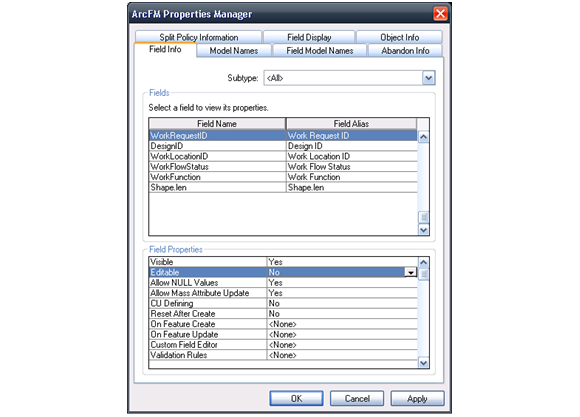
In the past, we’ve done this the long way and hoped we had an intern at the time. But we’re always keen to optimize our processes and make things work faster. The code below was developed and used to disable the Editable property across all feature classes for the fields specific to Designer™.
In the interest of customizability, you can enter in a list of field names in the topmost variable if your purposes differ. The second variable shows the specific property we’re setting en masse, and the third property is a true or false value to set everything to. These variables are listed in bold in the code below, and there are comments (in green) explaining them.
The property and value of these variables, by default, are populated to set the Editable attribute to false. If you want something different, the list of available “simple setting” properties is as follows:
- 0 (mmFSVisible)
- 1 (mmFSEditable)
- 2 (mmFSAllowNulls)
- 3 (mmFSCUDefined)
- 4 (mmFSClearOnCreate)
- 10 (mmSSPostable)
- 11 (mmSSValidateRelatedObject)
- 12 (mmSSNWValidateRelatedObj)
- 13 (mmFSAllowMassAttributeUpdate)
- 14 (mmSSSplitOnFeature)
This is another ArcCatalog VBA script, so here’s what you do:
In ArcCatalog, drop down the Tools menu and choose Macros → Visual Basic Editor.

Within the Visual Basic environment, expand the Normal.mxt file. Right-click it and insert a new Module within the Modules folder.
In the editor, click Tools → References and ensure that the following references are enabled:
- Miner & Miner Geodatabase Object Library
- Miner & Miner System Object Library
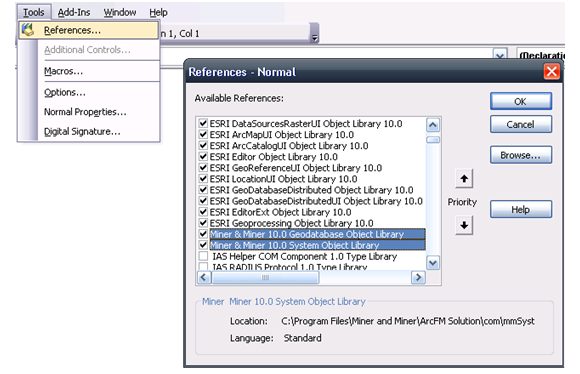
The code for this module is below. Copy and paste it into the module and save it.
‘ Field Names to change (comma separated):
Private Const m_MPEFLDNAMES As String = “WorkRequestID,WorkFunction,DesignID,WorkLocationID,WorkFlowStatus”
‘ Property to Edit:
Private Const m_MPEATTRTYPE As Integer = 1
‘ Value to set:
Private Const m_MPEATTVALUE As Boolean = False
Public Sub SetPropertiesEnMasse()
Dim catalogApp As IGxApplication
Set catalogApp = Application
Dim ws As IWorkspace
If TypeOf catalogApp.SelectedObject Is IGxDatabase Then
Dim gdb As IGxDatabase
Set gdb = catalogApp.SelectedObject
If gdb.IsConnected Then
Set ws = gdb.Workspace
End If
End If
If ws Is Nothing Then
MsgBox “Please select a database connection to search for when running this function.”
Exit Sub
End If
Debug.Print “Starting Process…..”
Dim eDS As IEnumDataset
Set eDS = ws.Datasets(esriDatasetType.esriDTAny)
IterateDatasets eDS
Debug.Print “———-FINISHED———-”
End Sub
Sub IterateDatasets(pEnumDataset As IEnumDataset)
Dim ds As IDataset
pEnumDataset.Reset
Set ds = pEnumDataset.Next
Do While Not ds Is Nothing
If ds.Type = esriDatasetType.esriDTFeatureClass Then
Dim dfc As IFeatureClass
Set dfc = ds
ProcessObjectClass dfc
ElseIf ds.Type = esriDatasetType.esriDTTable Then
Dim doc As IObjectClass
Set doc = ds
ProcessObjectClass doc
ElseIf ds.Type = esriDatasetType.esriDTFeatureDataset Then
IterateDatasets ds.Subsets
End If
Set ds = pEnumDataset.Next
Loop
End Sub
Sub ProcessObjectClass(oc AS IObjectClass)
If Not oc Is Nothing Then
Dim desc As String
Dim code As Long
desc = “”
Dim enSt As IEnumSubtype
Dim ocSt As ISubtypes
Set ocSt = oc
Set enSt = ocSt.Subtypes
desc = enSt.Next(code)
Do While Not desc = “”
Dim ctl As IMMConfigTopLevel
Set ctl = New MMConfigTopLevel
Dim mmFC As IMMFeatureClass
Dim list As ID8List
Dim sList As ID8List
Dim fList As ID8List
Dim listItem As ID8ListItem
Dim sListItem As ID8ListItem
Dim fListItem As ID8ListItem
Set mmFC = ctl.GetFeatureClassOnly(oc)
Set list = mmFC
list.Reset
Set listItem = list.Next(False)
Do While Not listItem Is Nothing
If listItem.ItemType = mmd8ItemType.mmitSubtype Then
Dim pSubtype As IMMSubtype
Set pSubtype = listItem
Set sList = listItem
sList.Reset
Set sListItem = sList.Next(False)
Do While Not sListItem Is Nothing
If sListItem.ItemType = mmd8ItemType.mmitField Then
Dim field As IMMField
Set field = sListItem
Dim fldMatch As Boolean
fldMatch = False
Dim fldNames As Variant
Dim fldName As Variant
fldNames = Split(m_MPEFLDNAMES, “,”)
For Each fldName In fldNames
If field.FieldName = fldName Then
fldMatch = True
Exit For
End If
Next fldName
If fldMatch Then
Dim foundSimpleSetting As Boolean
foundSimpleSetting = False
Set fList = sListItem
fList.Reset
Set fListItem = fList.Next(False)
Do While Not fListItem Is Nothing
If fListItem.ItemType = mmd8ItemType.mmitSimpleSetting Then
Dim ss As IMMSimpleSetting
Set ss = fListItem
If ss.SettingType = m_MPEATTRTYPE Then
foundSimpleSetting = True
ss.SettingValue = m_MPEATTVALUE
End If
End If
Set fListItem = fList.Next(False)
Loop
If Not foundSimpleSetting Then
Dim ssNew As IMMSimpleSetting
Set ssNew = New MMSimpleSetting
ssNew.SettingType = m_MPEATTRTYPE
ssNew.SettingValue = m_MPEATTVALUE
Dim newSetting As ID8ListItem
Set newSetting = ssNew
fList.Add newSetting
End If
End If
End If
Set sListItem = sList.Next(False)
Loop
End If
Set listItem = list.Next(False)
Loop
ctl.SaveFeatureClassToDB oc
desc = enSt.Next(code)
Loop
End If
End Sub
Be sure that you have a connection open and selected in ArcCatalog, then run the script. This code may take a minute or two. Don’t worry, it should be running! Check your attributes when you’re done, and you should be all set!

Rahul says:
Currently, I have to make 4 fields in my FC as visible through ArcFM properties manager. As I am hundreds of feature classes, so I can’t prefer doing it manually. Could you please guide how to use standalone Python script to achieve that.
I want to use Python 2.7 for that. Currently I am on 10.2 with arcgis 10.2.1
Skye Perry says:
Just set m_MPEATTRTYPE = 0 (mmFSVisible) and m_MPEATTVALUE = True in the script and update the m_MPEFLDNAMES to contain the fields you want to make visible. You can do this right in the VBA provided within you 10.2.1 environment. Python is more challenging because ArcFM Objects and ArcObjects are not directly exposed via Python.
If you’re really set on python, you can use instructions here to convert the script to python:
https://sspinnovations.com/blog/2014/02/04/useful-scripts-non-programmer-converting-vba-scripts-python
katamaraju says:
I have FC Name(String), FCFiled(String) and Setting type (Bool ex:- Editable FALSE)
Now I want to set programmatically Arcfm Properties for feature class.
Please help me with sample code. I am using C# 3.5 , ArcMap 10.2.1 and ArcFM
Corey Blakeborough says:
The code above in Visual Basic should be able to accomplish this. Set m_MPEFLDNAMES to your field name, m_MPEATTRTYPE to 1 (mmFSEditable), and m_MPEATTVALUE to False. If you only want this action to occur on a single feature class, you’ll want to modify the ProcessObjectClass Sub by modifying the first line to check for Nothing AND to check the object class name against what you’re looking for. Or, you can open the table directly from the workspace instead of going through IterateDatasets.
I realize that this article is for the “non-programmer”, so let me know based on your background if you need additional guidance.